Quickly switch network profiles on macOS
My network infrastructure is, thanks to my homelab, probably a bit more involved than for the average user. I maintain a VPN network, custom DNS servers, and both Wi-Fi and Ethernet connections. When switching workplaces I constantly have to switch network settings. macOS offers Network Locations which first looked like the answer, but they are too limited for my needs. So I built a small script around the existing macOS CLIs.
What I needed
My typical network contexts each require a different combination of settings:
-
Home: Wi-Fi on DHCP, DNS pointing at my homelab resolvers, VPN off
-
Work: Wi-Fi on DHCP, system default DNS, VPN off
-
Home Ethernet: Ethernet on DHCP, custom DNS, Wi-Fi off
-
Modem Management: Ethernet with a manual static IP for accessing my modem's admin interface, no custom DNS
-
VPN: Wi-Fi on DHCP, VPN on
Network Locations can store some of this but not all of it. DNS overrides and VPN toggling are outside what they handle cleanly.
The script
I created a script called netprofile. It wraps three macOS tools: networksetup for IP and DNS configuration, scutil for VPN control, and service validation using networksetup -listallnetworkservices.
The script is built around a set of composable low-level functions:
set_dns "Wi-Fi" "192.168.1.10" "192.168.1.11"    # set DNS servers
set_dns "Wi-Fi" "empty"                          # clear DNS back to default
set_wifi "Wi-Fi" dhcp                            # enable Wi-Fi with DHCP
set_wifi "Wi-Fi" off                             # turn Wi-Fi off
set_ethernet "Ethernet USB" manual "192.168.254.99" "255.255.255.0" "192.168.254.1"
set_vpn "homelab" on
set_vpn "homelab" off
Each function handles only one concern. set_wifi calls networksetup -setairportpower and optionally networksetup -setdhcp or networksetup -setmanual. set_vpn uses scutil --nc start and scutil --nc stop, always stopping before starting to ensure a clean state.
The profiles themselves are just case branches in apply_profile that call these primitives:
Home)
    set_wifi "$WIFI_SERVICE" dhcp
    set_ethernet "$ETH_SERVICE" off
    set_dns "$WIFI_SERVICE" "$DNS01" "$DNS02"
    set_vpn "$VPN_NAME" off
    ;;
Service validation
Before applying any profile the script checks that the named services actually exist on the current machine:
check_service_exists() {
  local service="$1"
  if ! networksetup -listallnetworkservices | sed '1d' | grep -Eq "^\*?$service$"; then
    err "Network service '$service' not found."
    exit 1
  fi
}
The sed '1d' strips the header line from networksetup output. The regex accounts for inactive services, which networksetup prefixes with an asterisk.
Usage
The script supports three modes:
netprofile              # interactive select menu
netprofile Home         # apply profile directly
netprofile --list       # print available profiles
The interactive mode uses bash's built-in select which presents a numbered menu. This is useful when running from a launcher or when I forget the exact profile name.
The service names (Wi-Fi, Ethernet USB) and the VPN name (homelab) are defined as variables at the top of the script. Adjusting for a different machine means changing those four lines.
Alfred integration
Typing netprofile Home in a terminal is already fast, but I wanted to trigger it without leaving whatever I was doing. Alfred is my launcher for everything, so the natural step was to build a small workflow around the script.
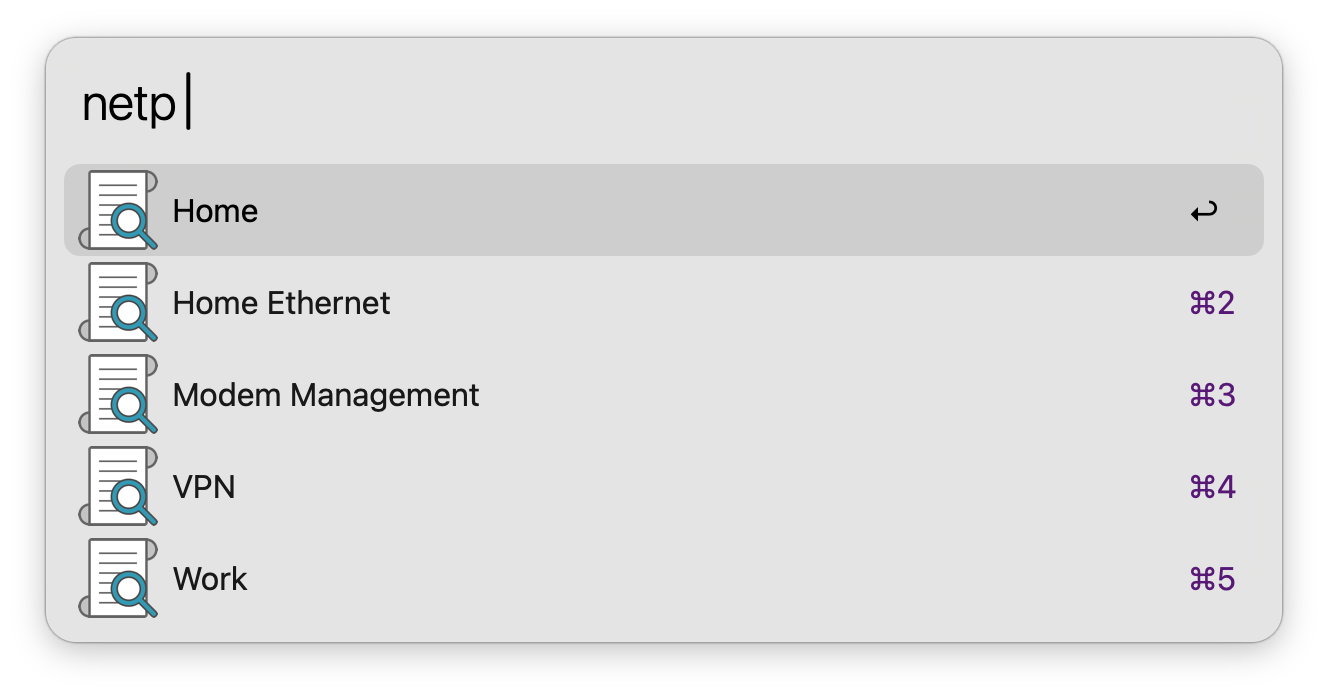
The workflow uses a List Filter as its input. Each profile name (Home, Work, Home Ethernet, Modem Management, VPN) is an entry in the list with a matching keyword and subtitle. Alfred's fuzzy matching means typing hom is enough to surface both Home and Home Ethernet instantly.
The List Filter passes the selected profile title to a Run Script action:
/usr/local/bin/netprofile "$1"
Using the full path to the script avoids any PATH issues since Alfred does not source the shell environment. The script runs, applies the profile, and exits silently. A Post Notification action at the end of the chain sends a brief macOS notification confirming which profile was activated, so there is visible feedback without having to open a terminal.
The result is: open Alfred, type two or three characters, press Enter, and the network switches. The whole interaction takes about two seconds.